Wednesday, January 18

Steering clear of Cyber tricks video


To start with we are going to watch the following video.  This should help you in understanding a little more about Internet Safety, and you may want to take notes so that you can use the information in your presentation/movie on Xtranormal.  


STEERING CLEAR OF CYBER TRICKS:


Once we complete watching the video as a class, you will have the full hour to work on your Internet Safety project on Xtranormal.  There are several points to keep in mind:

  1. The most important thing you need to do is get all of your information typed into your movie.  Don't worry about including character motions, camera angles, etc. yet because you are not being graded on how many of those you include in the movie.  The information, on the other hand, IS what you are getting graded on - so concentrate on completing that part first.
  2. Once you have included all of your information in the manner you want it to appear in your movie, I would suggest that you go back through your text boxes and spell check.  Remember, the website characters are going to say exactly what you have typed in.  
  3. If you are done, now is the perfect time to make your movie even that much better.  Continue to add small details that increase the quality of your movie.  Find additional details that your characters can talk about by going back and using a different website from the Internet Safety page to gather information, or do a search on your own.  
  4. It is almost impossible to have too much information.  If you imagine your audience being a group of 2nd or 3rd graders, then create your movie so that your audience is able to understand what you are saying.  In other words, the more information you have (or the more examples you give) the easier it would be for them to remember what Internet Safety involves.
  5. SAVE OFTEN!!  Saving often avoids losing what you have already created.
  6. DO NOT PUBLISH YET!! Publishing uses up your Xtranormal points, and you only have 300 Xtranormal points to work with.  If you publish before you're completely finished you are going to have to create a new account or buy points (definitely NOT recommended!).

Tuesday, January 17

Internet Safety; New seating chart

To begin today you are all going to be moved to your new seat.  When you get to your new seat you will want to get logged in right away as we have quite a bit of information to cover this week.

This week we are going to learn about Internet Safety.  Internet Safety covers many different aspects of accessing websites and information on the web, and it requires a common-sense knowledge of what to do and what to avoid while you are surfing the web.  This should be taken very seriously - people have been seriously injured (even died), tragically affected by what has happened to them, and some have even lost their homes because they have not practiced Internet Safety.

Your job will be to do research in various ares of Internet Safety and then make a movie explaining what you have learned.  You will be working with a partner (groups of 2 only!) of your choice.  Whoever you choose you need to make sure that it is someone you can trust, and someone who will share half the responsibility of completing the work with you (in other words you don't want to do all of the work yourself!).

Your center of information is located on a different page on the blog - the Internet Safety page.

I will have several videos for you to watch to help you learn a little bit about Internet Safety.  In addition, on the webpage listed above you will find many, many websites that have an abundance of information that you can use for your project.  It would be easy to use just the information listed on this webpage - however it would be perfectly ok for you to find additional information on other websites if those websites are reliable.

You and your partner will be creating a movie for your project.  The website on which you will create your movie is called Xtranormal.  At this website you and your partner will be acting as writer and director of your own "short movie" that will explain what Internet Safety is and how to make sure that you are following proper Internet Safety practices while engaged with the Internet.  I will go over the basics of Xtranormal today in class.

The rubric that we will be using for this project is below (a rubric shows how your assignment is going to be graded - therefore you know exactly what is expected of you when you are creating your presentation).


Once we finish, these presentations will be embedded on your blog as part of your "portfolio" that you will be creating on your blog.  I will have to show you how to do that, and I will when the time arrives.

One thing to note - notice that it does not say in the rubric how long your presentation has to last.  This is not based on time - but is based on the quality and quantity of information that you present in your movie.

I expect to spend this week working on this - I am anticipating this being due MONDAY, JAN. 24TH.  We will be working to complete it by then, which means that you need to work diligently in class so that you can complete it by that time.  It will be due at the end of the hour on that day.

Friday, January 13

3-day weekend

Welcome to the weekend (well, almost anyway)!

Today we are going to finish (for those that did not get their blog created) creating blogs in class.  Mostly this applies to 6th, 7th, and 8th hours as you were not able to get your blog completed.

For 3rd and 4th hours you will be creating a new page on your blog titled "Journal".  This will be used weekly to post a reflection of what you have accomplished during the week.  A reflection should explain what you've learned in this class for the past week.  It might include successes, failures (things that you found difficult to do), what you liked, what you didn't like, how you are going to use what you've learned, and/or why you think it is important or not important.  You can include images (we haven't learned how to do this yet, but will eventually) to help describe your reflection.

In addition we will also be reviewing the keyboard and all of the keys that we have learned so far.

We also have shortened hours due to the Teacher's Institute for the last hour of school - and don't forget you also have Connections today.

Thursday, January 12

Blogger

I have several "house keeping" items I need to go over before we start working in class.
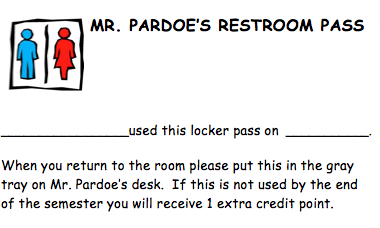
  1. You will be allowed to exit the classroom for the bathroom twice during the semester; and you will also be allowed to go to your locker twice during this semester.  Each time you go, you need to take a form with you.  When you return you will need to fill it out and put it in the gray tray on my desk.  Each pass is an extra credit point at the end of the semester, so if you do not use them you will get extra credit.

  2. We will be starting next week with a seating chart - just thought I'd let you know.
  3. Accessibility rules - no chatting (in Gmail or any other place), no games (that includes embedding them on your blog - and the fish swimming around eating fish food is a game), use the software programs I ask you to use, nothing else.  You should not be on any websites that you are not told to be on.  Searching in Google when you have been told to be on the class blog is a violation of classroom rules.  
First thing today will be to learn the O and the T keys on the keyboard.  As we continue to learn new keys we will always be reviewing the rest of the keyboard.


Today we are going to create your blog on Blogger.  This is the same website that hosts the class blog, so it should look very familiar.  The purpose for creating your blog is many-fold.  Some of what we are going to be doing is learning to correctly use a blog.  But we will also be posting assignments on your blog, and we will also be keeping a weekly journal on your blog as well (this is something we will be doing this week, in fact).  We just covered the Computer Lab Policy, so you should know exactly what you can and can't do.  In any case, the blog will become an important aspect of what you accomplish in this class.  By the end of the semester you should be able to look back through your blog posts on your blog and see many of the things that you have accomplished throughout the semester.  If we have time today we will create a new page on your blog - this page will host your weekly journals.

Wednesday, January 11

Wednesday, Jan. 11th

Once you get logged in and get to here, I want you to again go to the respective class-hour links below (CoSketch again) and write in anything new that you learned yesterday from what we covered regarding the Computer Lab Policy.  I would like everyone to write one or two things that they remember that they feel are important about the Computer Lab Policy.  These will be posted on the blog for later review.


thumbnail


thumbnail


thumbnail


thumbnail


Once you complete your entries on CoSketch, please open Google and log into your Google account, then open Gmail.  First, we will review what the four parts of a valid email address include (rack your brains - we talked about these four things last week in class!).  

Next, we are going to create a new contact in Gmail.  This is a simple procedure, and one skill that can really save you a bunch of time.  When you have contacts saved this allows you to type in the person's name that you are emailing instead of having to remember their entire email address every time you go to email that person (as long as you type in their email correctly the first time) - very convenient!  You can also create groups of contacts - for example you may want to separate your email contacts into family and friends so that when you go to email someone you'll know to look for a person's email in one or the other group (this is extremely useful when you have a lot of contacts).  Below is the steps to create a new contact:
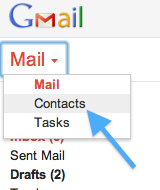
  1. Once in your Gmail, click on "Contacts"


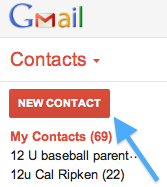
  2. Now on the left side you should see a red box that says "New Contact" - click on it.


  3. Next you'll want to type in a name and the correct email address (make sure you've included all 4 parts correctly!) for your contact.  Today I want you to include me (Mr. Pardoe) as one of your contacts.  My school email address is dpardoe@dist228.org.  After you create me as a contact you may create another contact of your choosing - you probably would want to include a friend or your mom or dad's email address.  Here is a screenshot of what it looks like when you are beginning to insert the information for a new contact:
  4. Once you type in your information Google automatically saves your contact - there is no "Submit" or "Done" button you have to click on. 
Next we are going to learn how to create a signature using Google.  A signature allows you to enter your name (and title, phone number, email address, or any other pertinent information) at the end of every email without having to type it in every time you send and email.  Since you should have your name at the end of every email this be efficient and time-saving.  Here are the steps to creating a signature in Google:
  1. Click on the "wheel" on the right side of the Gmail window, and then go down and click on "Settings":
  2. In the settings window you will see many different tabs, or links, across the top of the screen.  These tabs are how you can personalize your Gmail to what you want - I would suggest that you take some time to look through these tabs (on your own) to find what best fits you (many of you already have checked out the different "Themes" that are available, and if not you may want to take a look to see if there is something that you'd like to change about the way your Gmail page looks).  For now, to set up your signature, you will need to go to the General tab (which is the first tab).  Scroll down to "signature" - then you'll have the ability to type in what you want for your signature using the options given to you in Gmail.  Here is a screen shot of what this area looks like:
  3. What you need to do is enter your first and last name in the text box.  I will allow you to format it however you want - but I really would like for you to include your class hour along with your name so when I receive an email from you I know what hour you are in.

The last part of today is your first assignment!  What I want you to do is send me an email, and in the email you need to include a list of 10 things about you.  That list of facts about you must include facts that are related to the number it is written next to.

For example, your list might start out like this:
  1. I have one brother
  2. I have been to the Wisconsin Dells two times in my life
  3. My soccer number is #3.
  4. I own 4 Wii games (Wii sports, Modern Warfare, Wipeout, and WWII airplanes)
I think you get the idea. You need to have 10 facts about you on this list.  When you complete your list you need to email it to me.  This is due Thursday, Jan. 12th, and normally when I have you submit an assignment through email I allow you to have it submitted by midnight.  Therefore, this is due tomorrow, Jan. 12th at midnight.  

Tuesday, January 10

Computer Lab Policy part deux!

To begin today I want you to go to the following respective links (click on your class hour) and write down one or two things that you learned yesterday about what we talked about regarding the computer lab policy.  These links will take you to "CoSketch", which will allow all of you to write on the whiteboard at the same time.

3rd hour


4th hour


6th hour


7th hour


8th hour


Please be mindful of everyone else's posted material - do not deface or delete what someone else has written.  Tomorrow I will include an image of what everyone posted on the blog from today so you can go back and revisit what we covered (this will be important later in the week).

Once you have completed entering your information on Cosketch you can go to the Computer Lab policy again by clicking here.  We will cover the last half of the policy today (pages 19-20).

For the last part of class today we will add 2 new keys to what we have already learned on the keyboard.  We will be learning the I and the R.

Monday, January 9

Monday Jan. 9th

Today we are going to cover several different things.  First what I'd like each class to do is go to the respective "Dabbleboard" listed here and write down at least one thing that you learned last week.  Everyone will be able to write on the "board" at the same time so please don't change or delete what someone else has written.

micromob

3rd hour Scribblar

4th hour Scribblar

6th hour Scribblar

7th hour Scribblar


thumbnail

8th hour Scribblar
thumbnail
Once we have completed this little exercise we are going to review the School District's Computer Lab Policy.  This is an extremely important document that you have already agreed to (more than likely your parents agreed to it without your knowledge) - if you would not have agreed to it you would not have been given permission to log in to a computer here at school.  The Computer Lab Policy governs your ability to access school computers and the Internet, and it also discusses the consequences of violating the policy.  You can access the policy by clicking on this link:  Computer Lab Policy

Once you get to the website scroll down to page 17 (Chapter 7:  Internet, Technology, & Publications).  We will take some time to go over part of this today, but we won't spend an entire hour either day covering it (we'll cover the rest of it tomorrow).

For the last part of today we will learn 2 new keys - today's keys will be the I and the R.

Friday, January 6

Short week comes to an end

Despite the fact that we have only had 3 days of school this week, we have accomplished much in Computer Applications.  By the end of today everyone will have a Gmail account, and you will have already learned 1/3 of the letters on the keyboard.

Today the first thing we are going accomplish is that we are going to have everyone send an email to their parent(s)/guardian(s) (except 8th hour - you will be creating a Google account first).  Once you get logged in to the computer, log into your Google account.  Go to your Gmail account - you should see several links across the top of the screen - you want to click on Gmail.

On the left hand side you will see a button labeled "Compose" - click on it.


In the "To:" field type in your parents' email address.  If you're not sure I can help by looking on Skyward.

In the "Subject" line type in "Hello from Computer Applications class".

In the message box, copy the information that I have given to you below and paste it into your message box.  If you are not sure how to copy and paste, please let me know so I can help you get that done.  Here is what you need to enter in your message box:

Dear mom/dad/other:


I am sending you this email from my Computer Applications class to let you know that we have created a new Google account in class this week, and today we are sending our first email!  


In addition, Mr. Pardoe wants me to inform you that he has some important information to share with you regarding my Computer Applications class.  You will need to go to the following website to read this information - http://gmscomputerapps.blogspot.com/p/parent-letter.html


If you have any questions you can contact him at dpardoe@dist228.org.


Your favorite son/daughter,


Darth Vader


After entering your message you should always double check to make sure everything is correct.  Once you have done that, go back to the top (above where the "To:" field is) and you'll see a button labeled "Send" - click on it and off it goes!


Once we get this accomplished we will continue to learn and practice the keyboard.  Today we will add the H and E to the home row keys.

Thursday, January 5

Only 97 more days of school left!

This week will be a little awkward until everyone gets their Google account set up, so as you read through what's here on the blog it may seem slightly confusing.

For class periods 3 & 4 (that have set up their Google account) you will begin learning about keying.  However, there are 2 things I would like for you to do before we begin working on learning to key.  First, check to make sure that you can access your account.  This should help you to remember your information.  Second, I need you to give me your username and password so I can keep this information in case you lose it.  All you need to do is write it down on a piece of scratch paper and give it to me with your first and last name on it.

For class periods 6 & 7 you will be setting up your Google account today.  I will walk you through this process during class.  I will share with you some of the things that you need to keep in mind while creating your Google account, but this information should be remembered anytime you create an account with a password.  For those of you who already have an account you will be expected to help those who do not have one yet.

8th hour will continue working on learning to key.  We will review the home row keys today, and we may add learning a couple of new keys in addition to the home row.

At the end of tomorrow (Friday) every class will have created their Google account.  With that being done we can move forward next week with creating accounts on several other websites.

Wednesday, January 4

Welcome to 2012!

Happy New Year!  I hope your Holiday break was refreshing and enjoyable!

Welcome back, and welcome to Computer Applications!  Today we are going to talk about a variety of introductory items that are important for this class.  There are going to be many applications of computers and computer knowledge that you are going to learn this semester.  Some are going to be very challenging, others are going to be fun, but most importantly all of you are going to walk out of this class at the end of May with a trunkful of knowledge.

To give you an idea of what you will be learning and doing this semester, here is a list of some of the things that we will be doing this semester:
  1. Learn to key using the correct fingers on the correct keys
  2. Learn to format in Microsoft Word
  3. Learn to format in Microsoft Excel
  4. Create a blog
  5. Create an email account in Google (if you already have one, you're one step ahead of the game!)
  6. Learn how to correctly send emails
  7. Learn Internet Safety
  8. Create a podcast
  9. Participate in classroom discussions that occur only online
  10. Create an avatar (for some, learn what an avatar is!)
  11. Learn how computer programmers think
  12. Use a wiki page
There will undoubtedly be other things that we will accomplish, but this list should give you an idea of the variety of things that we do in here.

For today, we are going to start with learning about the room and the computer.  This week, and into next week we will be creating your Google account so that we can move forward with many of the things that we listed above.  

I also want to let you know that you will be having regular vocabulary quizzes in here.  There are 10 lists of words that will be covered.  Those lists include topics like The Internet, Software, Hardware, Multimedia/Graphics, and others.  More on this later (there will not be a vocab list this week or next week).

For this class, I grade on a point basis which means each assignment is given a point value.  For example, an assignment may be worth 10 points.  If you get 8 points on the assignment in Skyward I'm going to enter 8.  For those of you who prefer percentages - sorry, I just have never entered my grades that way.  If you want to figure out your percentage you can take the number of points you get on an assignment and divide by the number of points possible (8/10 = 80%, a C).  Here is the breakdown for the First Quarter:

Technique = 30% of your overall grade
Assignments = 30%
Quizzes = 25%
Timed writing (some call this a speed test) = 10%

These are "guesstimates" - they may change slightly by the time the end of the quarter rolls around, but you should be able to use these as a guideline.

Ok, let's get started with Computer Applications!