We will finish covering the Computer Network policy today.
After that is done we will start with learning of the keyboard. If you missed what I said yesterday, there is really only one way to learn to key, and you will be learning it here in class. Literally millions (maybe billions) of people have learned the "Home Row" method of keying.
To give you a little history...the keyboard that you are using is called the QWERTY keyboard. It has been in existence for over 125 years (created in 1875) and is by far and away the most commonly used keyboard. There is another keyboard layout (it is called the DVORAK keyboard), but it has not been in existence as long as the QWERTY keyboard, and it is not as popular in its use.
Learning to key is a skill - just like playing an instrument or playing a sport - and therefore it takes practice, and lots of it, to become good at it. My goal is to help you get better, but I can't help you get better if you don't TRY to get better yourself. In other words, you have to make an effort to improve - it doesn't just happen.
Today we will start with the home row and learn to use the keys on the home row as well as how to arrange our work station.

Showing posts with label computerlabpolicy. Show all posts
Showing posts with label computerlabpolicy. Show all posts
Tuesday, January 8

Monday, January 7
Welcome back!
Welcome back! I hope your Christmas break was refreshing and enjoyable!
Welcome to Computer Applications! Today we are going to talk about a variety of introductory items that are important for this class. There are going to be many applications of computers and computer knowledge that you are going to learn this semester. Some are going to be very challenging, others are going to be fun, but most importantly all of you are going to walk out of this class at the end of May with a trunkful of knowledge.

To give you an idea of what you will be learning and doing this semester, here is a list of some of the things that we will be doing this semester:
- Learn to key using the correct fingers on the correct keys
- Learn to format documents in Microsoft Word
- Create a blog
- Create an email account in Google (if you already have one, you're one step ahead of the game!)
- Learn how to correctly send emails
- Learn Internet Safety
- Create a podcast
- Learn over 100 words associated with computers
- Learn how computer programmers think
- Use a wiki page
There will undoubtedly be other things that we will accomplish, but this list should give you an idea of the variety of things that we do in here.
You should have a thumb/flash/USB drive that you will be using in this class (those in Design & Tech will also be using it in that class...don't lose it!). This will be something that you will not need right away, but eventually it will be an important part of the class.
For today, we are going to start with learning about the room and the computer.
I also want to let you know that you will be having regular vocabulary quizzes in here. There are 10 lists of words that will be covered. Those lists include topics like The Internet, Software, Hardware, Multimedia/Graphics, and others. More on this later (there will not be a vocab list this week or next week). You may also have regular pop quizzes - if you are paying attention in class these should not be difficult to complete.
For this class, I grade on a point basis which means each assignment is given a point value. For example, an assignment may be worth 10 points. If you get 8 points on the assignment in Skyward I'm going to enter 8. For those of you who prefer percentages - sorry, I just have never entered my grades that way. If you want to figure out your percentage you can take the number of points you get on an assignment and divide by the number of points possible (8/10 = 80%, a C). Here is the breakdown for the First Quarter:
Technique = 15% of your overall grade
Assignments = 50%
Quizzes = 30%
Timed writing (some call this a speed test) = 5%

These are "guesstimates" - they may change slightly by the time the end of the quarter rolls around, but you should be able to use these as a guideline.
Ok, let's get started with Computer Applications!
To begin with we are going to look at the Computer Lab use agreement that you have agreed to (probably without your knowledge). It can be located here (go to page 17).
This is an important document as it explains what your responsibilities are as a student and it also protects the school. More than likely your parents agreed to all of these policies on your behalf - what that means is that you are required to follow these rules in order to be able to use the computer you are going to be sitting in front of in this class.
Thursday, August 16
Day 2...making progress!
- Student handbook - we will cover the School District's Electronic Network Access Policy today. This is something you have already agreed to; my guess is that you have not read through the policy to know what you are agreeing to follow. Therefore, we will quickly cover the major points of the policy so that you know what is and is not acceptable. To get to the policy click on this link: Network policy
- Speedskins - students love these!! (nothing like sarcasm) These orange, plastic "skins" cover the keys so that you can't look at the keyboard while you are typing. When you are keying you should keep your eyes on what you are typing rather than on the keyboard - these help you to do that. These will stay on your keyboard the entire time while you are learning to key. On the back on each Speedskin is a number in black...it corresponds to the number of computer you are using so please keep the correct Speedskin at the correct station
- Remember, learning to key is a skill. Practice is essential to improving when performing a skill, but you must practice correctly!
Wednesday, January 11
Wednesday, Jan. 11th
Once you get logged in and get to here, I want you to again go to the respective class-hour links below (CoSketch again) and write in anything new that you learned yesterday from what we covered regarding the Computer Lab Policy. I would like everyone to write one or two things that they remember that they feel are important about the Computer Lab Policy. These will be posted on the blog for later review.


Once you complete your entries on CoSketch, please open Google and log into your Google account, then open Gmail. First, we will review what the four parts of a valid email address include (rack your brains - we talked about these four things last week in class!).
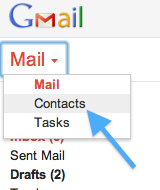
Next, we are going to create a new contact in Gmail. This is a simple procedure, and one skill that can really save you a bunch of time. When you have contacts saved this allows you to type in the person's name that you are emailing instead of having to remember their entire email address every time you go to email that person (as long as you type in their email correctly the first time) - very convenient! You can also create groups of contacts - for example you may want to separate your email contacts into family and friends so that when you go to email someone you'll know to look for a person's email in one or the other group (this is extremely useful when you have a lot of contacts). Below is the steps to create a new contact:
- Once in your Gmail, click on "Contacts"
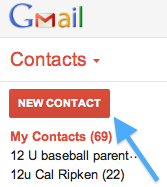
- Now on the left side you should see a red box that says "New Contact" - click on it.
- Next you'll want to type in a name and the correct email address (make sure you've included all 4 parts correctly!) for your contact. Today I want you to include me (Mr. Pardoe) as one of your contacts. My school email address is dpardoe@dist228.org. After you create me as a contact you may create another contact of your choosing - you probably would want to include a friend or your mom or dad's email address. Here is a screenshot of what it looks like when you are beginning to insert the information for a new contact:
- Once you type in your information Google automatically saves your contact - there is no "Submit" or "Done" button you have to click on.

Next we are going to learn how to create a signature using Google. A signature allows you to enter your name (and title, phone number, email address, or any other pertinent information) at the end of every email without having to type it in every time you send and email. Since you should have your name at the end of every email this be efficient and time-saving. Here are the steps to creating a signature in Google:
- Click on the "wheel" on the right side of the Gmail window, and then go down and click on "Settings":
- In the settings window you will see many different tabs, or links, across the top of the screen. These tabs are how you can personalize your Gmail to what you want - I would suggest that you take some time to look through these tabs (on your own) to find what best fits you (many of you already have checked out the different "Themes" that are available, and if not you may want to take a look to see if there is something that you'd like to change about the way your Gmail page looks). For now, to set up your signature, you will need to go to the General tab (which is the first tab). Scroll down to "signature" - then you'll have the ability to type in what you want for your signature using the options given to you in Gmail. Here is a screen shot of what this area looks like:
- What you need to do is enter your first and last name in the text box. I will allow you to format it however you want - but I really would like for you to include your class hour along with your name so when I receive an email from you I know what hour you are in.


The last part of today is your first assignment! What I want you to do is send me an email, and in the email you need to include a list of 10 things about you. That list of facts about you must include facts that are related to the number it is written next to.
For example, your list might start out like this:
For example, your list might start out like this:
- I have one brother
- I have been to the Wisconsin Dells two times in my life
- My soccer number is #3.
- I own 4 Wii games (Wii sports, Modern Warfare, Wipeout, and WWII airplanes)
I think you get the idea. You need to have 10 facts about you on this list. When you complete your list you need to email it to me. This is due Thursday, Jan. 12th, and normally when I have you submit an assignment through email I allow you to have it submitted by midnight. Therefore, this is due tomorrow, Jan. 12th at midnight.
Tuesday, January 10
Computer Lab Policy part deux!
To begin today I want you to go to the following respective links (click on your class hour) and write down one or two things that you learned yesterday about what we talked about regarding the computer lab policy. These links will take you to "CoSketch", which will allow all of you to write on the whiteboard at the same time.
3rd hour
4th hour
6th hour
7th hour
8th hour
Please be mindful of everyone else's posted material - do not deface or delete what someone else has written. Tomorrow I will include an image of what everyone posted on the blog from today so you can go back and revisit what we covered (this will be important later in the week).
Once you have completed entering your information on Cosketch you can go to the Computer Lab policy again by clicking here. We will cover the last half of the policy today (pages 19-20).
For the last part of class today we will add 2 new keys to what we have already learned on the keyboard. We will be learning the I and the R.
3rd hour
4th hour
6th hour
7th hour
8th hour
Please be mindful of everyone else's posted material - do not deface or delete what someone else has written. Tomorrow I will include an image of what everyone posted on the blog from today so you can go back and revisit what we covered (this will be important later in the week).
Once you have completed entering your information on Cosketch you can go to the Computer Lab policy again by clicking here. We will cover the last half of the policy today (pages 19-20).
For the last part of class today we will add 2 new keys to what we have already learned on the keyboard. We will be learning the I and the R.
Monday, January 9
Monday Jan. 9th
Today we are going to cover several different things. First what I'd like each class to do is go to the respective "Dabbleboard" listed here and write down at least one thing that you learned last week. Everyone will be able to write on the "board" at the same time so please don't change or delete what someone else has written.
micromob
3rd hour Scribblar
4th hour Scribblar
6th hour Scribblar
7th hour Scribblar

8th hour Scribblar

Once we have completed this little exercise we are going to review the School District's Computer Lab Policy. This is an extremely important document that you have already agreed to (more than likely your parents agreed to it without your knowledge) - if you would not have agreed to it you would not have been given permission to log in to a computer here at school. The Computer Lab Policy governs your ability to access school computers and the Internet, and it also discusses the consequences of violating the policy. You can access the policy by clicking on this link: Computer Lab Policy
Once you get to the website scroll down to page 17 (Chapter 7: Internet, Technology, & Publications). We will take some time to go over part of this today, but we won't spend an entire hour either day covering it (we'll cover the rest of it tomorrow).
For the last part of today we will learn 2 new keys - today's keys will be the I and the R.
micromob
3rd hour Scribblar
4th hour Scribblar
6th hour Scribblar
7th hour Scribblar
8th hour Scribblar
Once we have completed this little exercise we are going to review the School District's Computer Lab Policy. This is an extremely important document that you have already agreed to (more than likely your parents agreed to it without your knowledge) - if you would not have agreed to it you would not have been given permission to log in to a computer here at school. The Computer Lab Policy governs your ability to access school computers and the Internet, and it also discusses the consequences of violating the policy. You can access the policy by clicking on this link: Computer Lab Policy
Once you get to the website scroll down to page 17 (Chapter 7: Internet, Technology, & Publications). We will take some time to go over part of this today, but we won't spend an entire hour either day covering it (we'll cover the rest of it tomorrow).
For the last part of today we will learn 2 new keys - today's keys will be the I and the R.
Monday, August 29
Monday, August 29
We have many things that we will be accomplishing this week. They are as follows:
Reminder for next week - we only have 4 days of school! Monday is Labor Day so there will be no school.
 Today will be a review day - we'll review all the keys we've learned so far. Practice is an important part of developing a skill, and we will frequently practice so we can improve. We will practice on page 7.
- Accessibility rules. Now that you have access to gmail, and have accessed the Internet (and will be doing so frequently), we need to have rules in place for when it is ok to check gmail, access the Internet, and so on. Otherwise it becomes complete chaos in the room. Therefore the accessibility rules are in place to keep order in the room. If you need to refresh yourself on the Computer Lab Policy, here is the link: Computer Lab Policy.
- No one is to be on the Internet unless granted specific permission to do so.
- You may not check gmail at will - Mr. Pardoe will let you know when it is appropriate to do so.
- You should only be accessing the programs that Mr. Pardoe has instructed you to access. In other words, if we are working in Microsoft Word you should not be in Excel.
- After we create blogs, games will not be allowed to be on your blog. Once you are done with this class you can do what you want, but in here there will no games.
- Be school appropriate at all times!!
- Chatting is not allowed during class.
- We will continue to learn the keyboard - we will review all letters learned and learn the n, g, left shift key, and period (.).
- You will have a technique grade this week. Last week we did this for practice, and to be quite honest I didn't get as much done on this front as I wanted with all the gmail problems we had. Nonetheless, this week you will be receiving your first technique grade.
- Your first submitted assignment via email will also be this week. You will be submitting to me, at my school email address (dpardoe@dist228.org) an email that will contain "10 things about me". But, it won't be just any "ordinary" list - instead, you must submit 10 things about you that relate to the numbers 1 through 10. For example, if I were sending this I would start like this: 1. I have one sister; 2. I traveled 2 places this summer (Mattoon, IL and Schererville, IN); 3. I have 3 kids; and so on. This will be due on Wednesday and is homework - we will not work on this in class.
- We also will introduce Edmodo. This is a social network that we will use in class for class purposes - it will not be a place for chatting. We will sign up - I'll help you do that in class. We will have a discussion item that you will be required to answer and post on Edmodo - this will be for a grade.
- Our last assignment for this week is what I call a Correct Fingers assignment. What I do with this is simply quiz you on which fingers are used on which keys. If you are using the correct fingers then this should not be a problem :-)
- We normally take all of our quizzes online. In order to do that you will have to register at a website (www.classmarker.com) - we will do this in class. Taking the quizzes online saves on paper - plus it's pretty cool to take a quiz online rather than use a pen or pencil.
Reminder for next week - we only have 4 days of school! Monday is Labor Day so there will be no school.

Subscribe to:
Comments (Atom)